 SnapDictate
How to show Claude Code which button you mean
Give Claude Code an accessible screenshot, identify the page and panel, name the exact button label, and describe the change in words. When two controls look alike, mark the intended one and explicitly preserve the other. Before editing, ask Claude to identify the target and locate the responsible implementation. Afterward, check the changed control and the similar control you wanted left alone.
The screenshot identifies the visible target. The project files establish how that target is implemented.
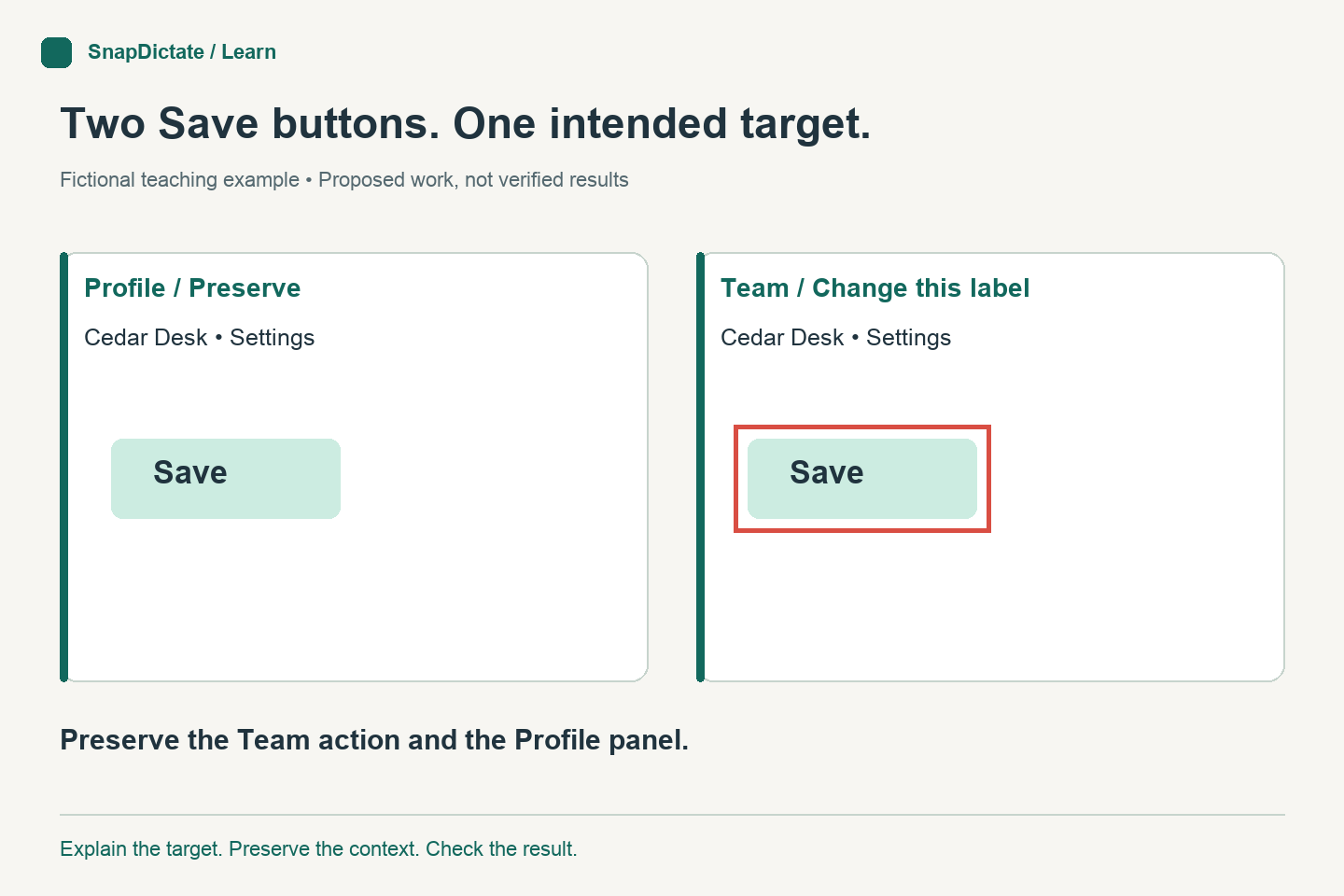
Two Save buttons are two different targets
Consider Cedar Desk, a fictional team-management app. Its Settings page contains a Profile panel and a Team panel. Each panel has a button labeled “Save.” The owner wants the Team button renamed “Save team settings,” without changing either button's action.
The vague request is:
Rename Save so people know what it does.
Even with an image, that request does not identify which Save button should change. A screenshot cropped down to one button can be worse: it may remove the panel title that distinguishes it.
Show the two panels together when readable, or provide an overview plus a detail image. Put marker 1 beside the Save button inside Team. Keep both panel headings visible. The accompanying text should say that the Profile button is not part of the request.
For the general structure around a screenshot, see the five-part change request.
Give Claude Code the image through a documented path
Claude Code documents image drag-and-drop, clipboard input, and asking it to inspect an accessible image file by path. The exact interaction depends on the interface and operating system. See “Work with images” in the official workflows.
For a local project, a request could name an image stored with the review materials:
Inspect review/settings-overview.png.
It is a fictional example image in this template; replace the path with
an image that actually exists in your working environment.
Marker 1 identifies Save inside the Team panel, not Save inside Profile.
Describe that target before changing code.
In an actual request, remove the template explanation and use the real path. A filename is not evidence that the image exists or that Claude opened it. Ask it to report an access problem rather than guessing from the name.
Do not assume a local path on your computer is available in a remote session. Use a supported attachment or accessible project file for the environment where Claude is working.
Connect the marked control to the project implementation
A screenshot does not provide a source-code selector. Ask Claude to locate the component that renders the Team panel and determine whether its button is independent or shared.
Claude Code's best-practice documentation describes referencing project files with @ and supplying specific constraints. Read its context guidance. Provide a known file reference when you have one; do not guess the component path just to make the prompt look technical.
If both controls use the same reusable button component, the label may be supplied by each panel. Changing a shared default could affect more than the selected control. The request should preserve the other instances while allowing the implementation needed to achieve that result.
“Only one button should look different” is a useful outcome. “You may edit only one file” may be an unjustified implementation constraint.
Copy this Claude Code request
This is the complete request for the fictional Cedar Desk example.
Work in the existing Cedar Desk project.

Target
Settings page, Team panel, Save button marked 1 in the supplied image.
The Profile panel also has Save; that is not the target.

Change
Replace the Team button's visible label with “Save team settings.”
Preserve its existing action, validation, saved-data behavior, styling,
and position. Keep the Profile panel's Save label and behavior unchanged.

Before editing
Inspect the image and relevant project files. Identify the target and
locate the implementation. If the image is unavailable or a shared
component makes the scope unclear, explain the issue before guessing.

Verification
Check the exact Team label in the rendered page.
Use approved test data to check that Team still saves its own settings.
Check that Profile retains its label and saves its own settings.
Inspect the relevant error or validation state if the changed code
could affect it. Do not publish or alter production data.

Report
Name the files changed and evidence for each check. Separate completed
edits from unperformed or blocked checks.
The request authorizes a bounded change, not a Settings redesign. It also identifies what a successful label change does not prove: that the two save actions still write to the correct place.
Use planning when the implementation is uncertain
For a straightforward label replacement, a long planning phase may add little. If Claude finds that the labels are generated from shared configuration or that the panels reuse an unexpected handler, ask for a brief plan before it changes the implementation.
The plan should explain the relevant dependency, the proposed change, and the preservation checks. Do not use uncertainty as a reason to regenerate the page. The point is to understand the existing project well enough to make the intended difference.
Ask a narrow clarification when the desired outcome is unclear. “Should the Profile label remain Save?” is unnecessary if your request already answered it. “Should this label also change in the translated interface?” may be important if the project supports translations and your request does not cover them.
When the original package cannot be attached
Do not keep retrying an unsupported archive format without checking what the current interface accepts. Provide the review text and relevant individual images through supported paths instead. Preserve the mapping between each image, target number, and instruction.
A small handoff note can say:
This is an extracted handoff, not the complete original package.
Read the request text and inspect the two named images.
The overview establishes the panels; the detail identifies marker 1.
No audio or video is included. Say if either image is unavailable.
This makes the available evidence explicit. Do not claim Claude has a SnapDictate connector merely because a review mentions one. Connection options, permissions, and setup depend on the actual environment.
For annotation details, use how to mark screenshots for AI feedback.
Review the result in the same page state
After the change, open Settings with both panels visible. Confirm the exact label and inspect the unchanged Profile control. Then test behavior using non-production data and the project's approved test process.
If Claude cannot run the application or access a test account, it can still report the code change and its inspection findings. It should not claim the rendered interface or save behavior passed checks it could not perform.
Track those checks individually in the implementation checklist. That prevents a successful text replacement from hiding an untested data operation.
Prepare the visual context with SnapDictate
SnapDictate can keep the spoken or typed instruction, marked screenshot, and proposed checklist together for this handoff. Claude Code still needs access to the relevant materials and project files, and it remains responsible for implementation and testing. See how SnapDictate assembles a review. Customers should sign in for current connection instructions rather than assume a universal setup.
Claude Code screenshot questions
Can Claude identify the component from the screenshot alone?
It can use the image as context, but the image does not establish the actual source file. Ask it to inspect the project and connect the visible target to the implementation rather than invent a filename.
Do I need to attach the entire project with the screenshot?
Not when Claude already has authorized access to the relevant project. Give it the missing visual context and point to known files or decisions. Do not upload unrelated material merely to make the request larger.
What if it changes both Save buttons?
Keep the intended Team change and request a targeted restoration of the Profile change. Provide the original scope and inspect the relevant diff before approving a broad rollback.
Sources
Published by SnapDictate / RepX Inc., the maker of the product mentioned here. About and corrections.