 SnapDictate
How to explain changes to an AI coding agent: a request template
Give an AI coding agent five things: where the change belongs, what happens now, what should happen instead, what must stay unchanged, and how to check the result. Add a screenshot when the location is difficult to describe. The goal is not a longer prompt. It is a request that leaves fewer important decisions unstated.
This works for an existing website, application, or interface. You do not need to know the component name to describe the outcome you need.
Start with the difference you want
“Fix this” leaves two questions unanswered: what is “this,” and what counts as fixed?
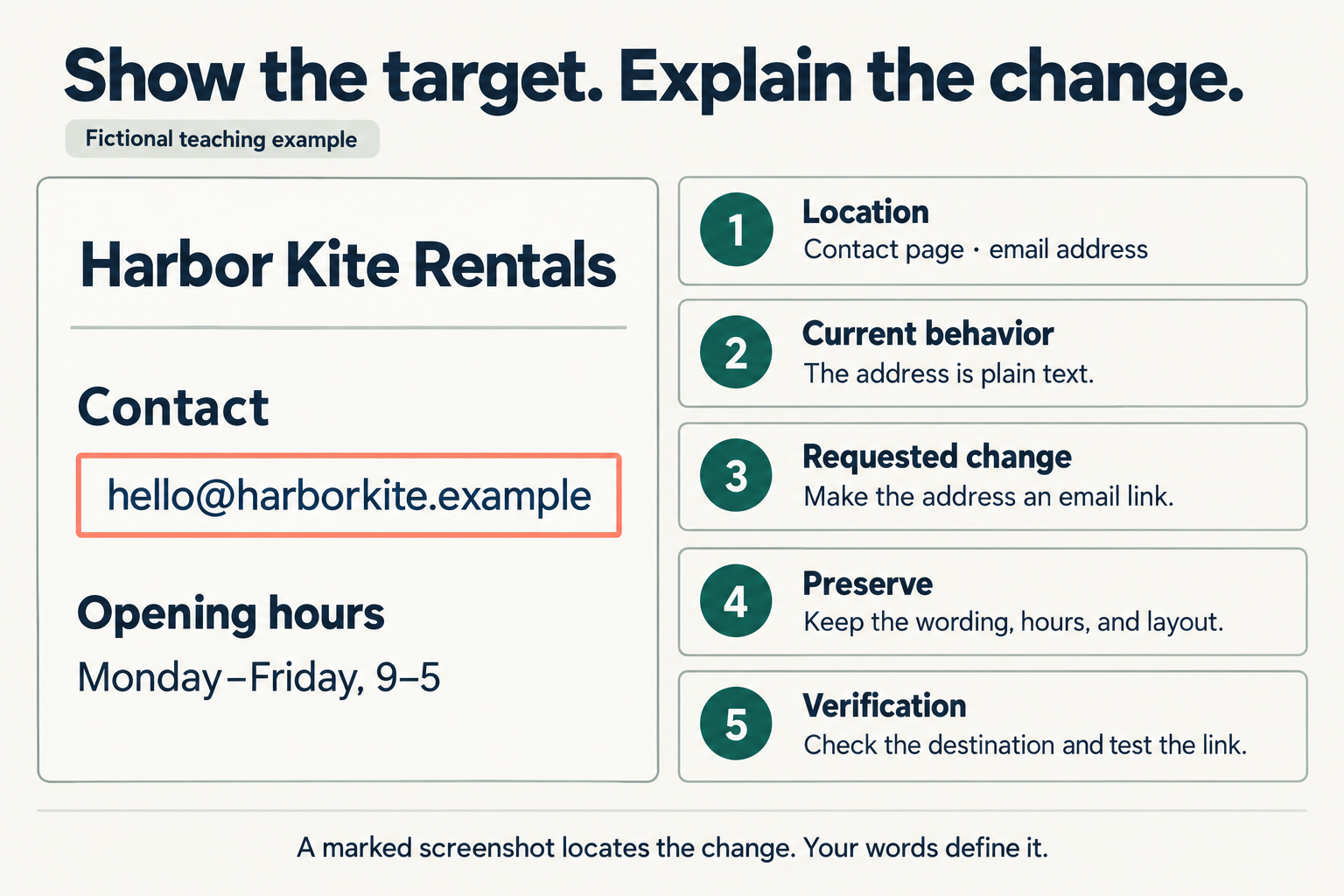
Consider Harbor Kite Rentals, a fictional business used throughout this example. Its Contact page displays an email address as plain text. The address is correct. The problem is that visitors cannot click it to start an email.
A vague request might be:
Fix the contact details. Make them easier to use.
That could invite a new contact form, different wording, rearranged opening hours, or a redesigned page. None of those changes is required.
A bounded request is:
On the Contact page, in the “Email us” section, make hello@harborkite.example a clickable email link. Keep the address exactly as written. Preserve the street address, opening hours, and page layout. Check that the link targets that address and that it can be reached and activated with the keyboard.
This describes a difference between two states. Before: correct text, no link. After: the same text functions as a link. The rest of the page is a preservation requirement, not an invitation to improve it.
Copy the five-part change request
Use this template in your existing project conversation. Replace the bracketed text with facts about your project; remove fields that genuinely do not apply.
Location
Page or route: [where this appears]
Element: [exact label and surrounding section]
State: [signed in/out, open panel, selected tab, screen size]
Reference: [screenshot or file, when available]

Current behavior
[What I can observe now. Separate observations from guesses.]

Requested change
[The exact replacement text, visual change, or behavior.]

Preserve
[Specific content, interactions, data behavior, and layout to keep.]

Verification
[The action to take and the result that should be observable.]

Use the existing project. Inspect the relevant implementation before
editing. Flag a material conflict or missing requirement rather than
silently choosing. Report what changed, what you checked, and what
remains unverified.
The final instruction does not force an agent to behave correctly. It makes the expected work and reporting explicit. A model can still misread a screenshot, misunderstand the code, or run into an environment it cannot test.
Identify the page and the state
A page name alone may not identify the target. A Settings page can show account settings, team settings, an unsaved form, or a confirmation dialog. Two users may see different controls because their permissions differ.
Write “Settings → Team, with the Invite member dialog open,” rather than “the settings screen.” For a layout problem, record the viewport—the area in which the document is viewed—when you know it. Do not guess a pixel width from an image.
Give the exact visible label and one nearby landmark. “The Save button below Notification preferences” is more useful than “the second blue button.” Position and color can change with screen size or theme.
A screenshot should support that description, not replace it. A number or arrow can identify the target, but it cannot explain whether you want a new label, a different destination, or a different visual treatment. See how to annotate screenshots for AI feedback.
Match the acceptance check to the type of change
An acceptance check is a concrete observation that would support accepting the work. Different changes need different checks.
| Request type | What to specify | What to check |
|---|---|---|
| Text replacement | The exact old and new wording, plus location | The new wording appears in that location; nearby copy remains unchanged |
| Spacing or layout | The relationship between named elements and the states affected | The relationship looks right at the agreed viewports; content remains readable |
| Behavior | The starting state, action, and expected result | Performing the action produces the result without breaking the preserved behavior |
These checks can be manual or automated. The important distinction is between evidence of the requested outcome and evidence of something merely related to it.
Example 1: replace text without rewriting the section
Suppose Harbor Kite Rentals wants to replace a heading.
On /rentals, replace the heading “Our equipment” with “Choose your kite.”
Change only this heading's text. Preserve the paragraph beneath it,
the card labels, links, type styles, and layout rules.

Check the exact replacement wording. At the current desktop and mobile
previews, confirm it remains readable and does not overlap the cards.
Do not rewrite other copy to accommodate the new heading.
A text change can alter wrapping even when the styling stays the same. That is why the check includes the result on the page, not only the presence of the new words in a file.
Do not demand that every pixel remain identical while also requesting longer text. Describe what must remain stable: the section order, design styles, and readable relationship to the cards.
Example 2: adjust spacing without moving the page
“Give it more room” does not identify which gap should change. Name both sides of the gap.
On /rentals, increase the vertical gap between the introduction paragraph
and the first row of kite cards. Match the gap used between the
introduction and cards on /lessons.

Preserve the space above the heading, the card order, and the card widths.
If the two sections use a shared spacing rule, explain the wider effect
before changing that rule.

Compare both pages at the same viewport. Check the narrow layout too.
This uses an existing reference instead of inventing a measurement. When you have an approved design specification, give its actual measurement instead. “Match this known gap” and “use this measured gap” are both clearer than asking for something to feel more premium.
The request also identifies a dependency: a shared styling rule might affect more than one page. Preserving the outcome does not always mean changing only one file.
Example 3: make an email address work as a link
For the Contact page, the visual check is only part of the job.
On /contact, make the displayed address hello@harborkite.example an email
link targeting that same address. Preserve its wording, the nearby phone
number, opening hours, and section layout.

Check the link destination, keyboard focus, and activation. Where an
email handler is configured, confirm that activation opens a draft
addressed correctly. Do not send a message as part of the test.

Report a missing email-handler setup as a test limitation, not as proof
that the website link is broken.
The mailto: scheme is the standard way to specify an email link in HTML. It supplies the destination; the user's configured email software affects what opens. MDN's email-link documentation explains the mechanism.
A screenshot showing underlined text does not establish that the destination is correct. Conversely, checking the destination alone does not show whether the link is visible or usable in the page layout.
Decide whether to send one request or a grouped task
Group changes when they share an outcome and need to be checked together. A button-label change and its matching confirmation text may belong in one request. A new payment flow and an unrelated footer typo usually do not.
For grouped work, give each item a short identifier and its own check. Keep the shared preservation rules above the items rather than copying them into every sentence. Ask the agent to report item-level status, so a completed typo correction does not make a blocked behavior change look finished.
When you have a long review, use the implementation checklist method to separate requests from observations and questions.
Ask for clarification when the answer changes the work
A useful clarification resolves a decision with consequences. For example: “Should this address open an email draft or copy the address to the clipboard?” Those are different behaviors.
You do not need a planning discussion for every punctuation correction. Ask the agent to pause when the desired outcome conflicts with existing behavior, when a shared component would affect other pages, or when a missing decision changes data handling or user access.
A useful instruction is: “Proceed with the stated change where it is unambiguous. Ask before choosing between materially different outcomes.” That is more practical than either “never ask questions” or “ask me about everything.”
Review the changed result, not just the completion message
Ask for a short report naming the change, the checks performed, and the checks not performed. Open the relevant preview yourself when possible. Compare the same page state against your original request.
Keep three statements separate: the agent says it edited a file; the edited application shows the intended result; the behavior has been checked in the environment you care about. One does not automatically establish the next.
A failed check should produce a narrow follow-up, not a fresh redesign request. “The email link targets the right address, but the opening hours moved below the map; restore their previous position” is actionable. For that recovery process, use how to stop unintended changes to working code.
Keep the explanation beside the screenshot
SnapDictate combines spoken or written instructions, annotations, and screenshots in recording order. That gives the receiving agent a review to inspect alongside this request structure. Its optional brief proposes checklist items; it does not implement or verify the change. See how SnapDictate works.
Questions about writing a change request
Do I need to know the source file or component name?
No. Identify the visible page, state, element, and desired outcome. Provide a file path when you know it, but do not invent one. Ask the agent to locate the responsible implementation before editing.
Should I say “keep everything else the same”?
You can, but also name the important things to preserve. “Keep validation, saved data, and the existing success message” gives the agent more useful boundaries than a general instruction alone.
What should I do when the agent cannot view my screenshot?
Describe the target in text and provide the image through a supported input path. Ask which evidence it actually inspected. Do not accept an image-based conclusion when the image was unavailable.
Can a detailed prompt guarantee the right result?
No. Clear instructions help define the work, but code defects, inaccessible tools, incomplete context, and model errors remain possible. Acceptance checks tell you what to verify rather than asking you to trust the wording of a completion message.
Sources
Published by SnapDictate / RepX Inc., the maker of the product mentioned here. About and corrections.