 SnapDictate
How to dictate changes while taking screenshots
Name the page and target before each capture, say what should change, and state what must stay the same. Capture the relevant screen, then add any clarification. Review the transcript before handing it off. The useful unit is a short explanation tied to a visible state—not an uninterrupted stream of thoughts the agent must untangle.
You can use this method with any workflow that preserves your words and images together.
Prepare the review before you start talking
Open the existing project in the state you intend to discuss. Decide which related changes belong in the review. Close irrelevant dialogs and use test data where possible.
You do not need a full script for ordinary feedback. A short private outline is enough: page, target, requested change, preservation rule. It gives you somewhere to return when navigation or an unexpected screen interrupts your explanation.
Read exact labels rather than describing everything by position. “The heading ‘Our space’” travels better than “that big line near the top.” When a replacement must be exact, dictate it deliberately and check the transcription afterward.
A screenshot cannot record the sentence you meant to say. A transcript cannot show the screen you forgot to capture. Plan for both kinds of evidence.
Use a before-capture, capture, after-capture rhythm
Before the capture, establish what the image is about. Then capture the relevant state. After the capture, resolve a detail or restate an important preservation instruction.
For example: “I'm on the room-booking page. The marked heading needs this exact replacement.” Capture. “Keep the photograph and the booking button below it.”
Do not rely on speech being aligned to an exact visual instant. Say which page or marker a clarification belongs to, especially after navigating. The receiving agent should be able to match the words to the intended screen even without precise timing.
A fictional 60–90-second narration script
This script uses Moss Room, a fictional venue-booking website. It contains 165 spoken words; 60–90 seconds is a suggested rehearsal window, not a measured recording or a product timing claim. Take additional time for navigation or captures as needed.
I'm reviewing Moss Room's existing website. First, I'm on the Rooms page.
The main heading says “Our space.” Replace it with “Find a room for your
next workshop.” Keep the paragraph, photograph, and booking button.

I'm drawing a box around the heading. This screenshot is the Rooms-page
heading change. I'm capturing it now.

One clarification: keep the current heading style. I'm changing the
words, not asking for a new page design.

Now I'm moving to Contact in this same tab.

On Contact, the email address is bookings@mossroom.example. Make it
clickable so it opens an email draft to that address. Keep the street
address and opening hours below it.

I'm marking the email and capturing this page now.

Change the opening hours too—sorry, correction: do not change the
opening hours. Only make the email clickable.

Before editing, check that the review contains both screenshots. After
editing, verify the exact heading and the email destination. Tell me
which checks you performed and which you could not perform.
The spoken correction is intentional. Real reviews contain false starts. What matters is resolving them before an agent treats both versions as active requirements.
Turn that narration into a readable sequence
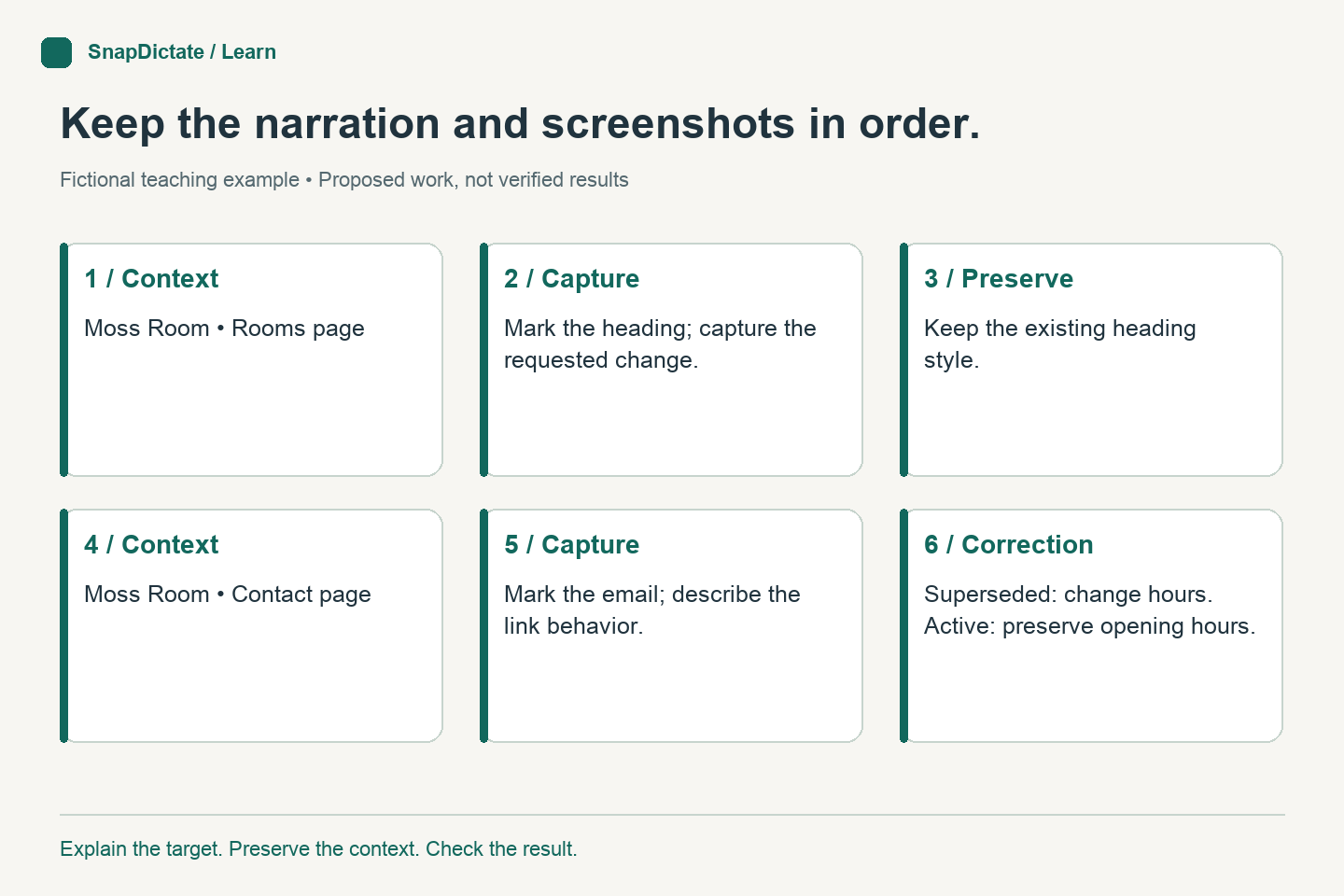
The handoff should make the relationship between the two images and the surrounding words explicit. The following is a written sequence for the fictional example, not a set of delivered image assets.
| Position | Content | What it establishes |
|---|---|---|
| Text before capture 1 | Rooms page; old heading; exact replacement; preserve paragraph, photograph, and button | The first requested change |
| Capture 1 | Marked heading with the surrounding Rooms-page content | The visible target and current layout |
| Text after capture 1 | Keep the current heading style | The visual boundary of the change |
| Text before capture 2 | Contact page; email-link request; preserve address and hours | The second requested change |
| Capture 2 | Marked email and neighboring contact details | The second target and preservation context |
| Text after capture 2 | Explicit correction: opening hours must remain unchanged | Which spoken instruction controls |
Notice that the second screenshot is not evidence that the email link already works. It identifies the address to change. The agent still needs to inspect and test the implementation.
Clean up the correction without hiding its meaning
Before sending, replace the contradictory instruction with a clear note in the handoff:
Correction to the Contact-page narration:
Disregard the false start “Change the opening hours too.”
The opening hours must remain unchanged.
The only Contact-page change is making bookings@mossroom.example
an email link to that same address.
Keep the original recording or transcript available when appropriate, but identify the correction beside the affected request. Do not expect the recipient to infer that “sorry” cancels an earlier instruction with the right scope.
Check names, numbers, punctuation, and exact replacement copy. If the transcript says “work shop” and your approved heading says “workshop,” supply the approved string. If you are unsure what was spoken, label the uncertainty instead of inventing a confident reconstruction.
For a review that needs task tracking, follow turning a transcript and screenshots into a checklist.
Navigate quietly when you are not giving instructions
It is fine to stop talking while opening a page, scrolling, or waiting for a dialog. Silence is not a requirement, and it does not create useful instructions by itself. It simply avoids adding navigation chatter that someone must later separate from the task.
Resume with the new page or state: “Now I'm in the confirmation dialog.” That short reset matters more than narrating every click.
Keep related changes together, but do not force unrelated problems into one long recording. A visual correction, a new pricing policy, and a failing database operation may need different evidence and different decisions. A review can identify them without approving all of them for immediate implementation.
Check the handoff before the agent starts
Read the review as someone who was not watching your screen. Can you identify each target from the exported material? Are the images readable? Does a correction clearly replace the wrong instruction? Are preservation requirements attached to the right page?
A useful receiving instruction is:
Read the review in order and inspect each supplied image.
List the requested changes, preservation rules, and unresolved questions.
Do not treat observations or false starts as extra tasks.
Identify any image or source you could not access before relying on it.
That instruction is a comprehension check, not evidence of completed work. After implementation, compare the result with the cleaned-up requirements. For Moss Room, check the exact heading separately from the email behavior; record the checks rather than merely marking the review “done.”
Use the annotation guide when your spoken reference still leaves the target unclear.
Choose the right recording format
This method uses deliberate captures and an explanation. It is not a substitute for motion evidence when the problem involves an animation, flicker, or timing-dependent sequence. A short video may be the better supplement in those cases. The video-versus-screenshots decision guide explains when to use each.
SnapDictate supports this spoken-or-typed workflow within one selected Chrome tab and website. Text and captures stay in recording order; speech timing is approximate, and a sentence crossing a capture stays whole. You can export the review for a supported receiving workflow. It is not a continuous video or desktop-wide recorder. See the review sequence.
Dictation questions
Should I keep talking while every page loads?
No. Pause when there is no instruction to give. Once the new state appears, name it and continue. The recipient needs the relevant context, not a commentary on every wait.
What if speech recognition changes an important word?
Correct the text before handoff and provide the exact approved wording. Pay particular attention to addresses, numbers, product labels, and words that sound alike.
Can I mix typed notes with spoken feedback?
Yes. Use typed notes for exact strings, corrections, or details that are awkward to dictate. Make clear which note belongs to which capture and whether it replaces an earlier instruction.
Sources
Published by SnapDictate / RepX Inc., the maker of the product mentioned here. About and corrections.